⚙️ System Settings
Entry: Click the gear icon ⚙️ on the right side of the title bar
System settings has 2 tabs: General and Device.
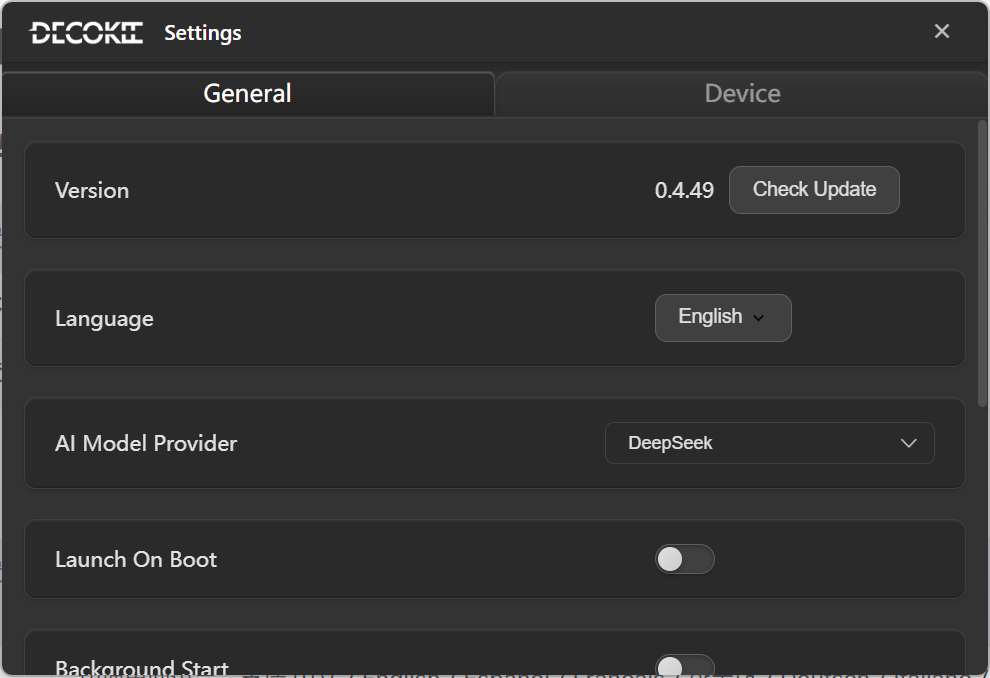
General
Version & Updates
| Setting | Description |
|---|---|
| Version | Current DK-Suite software version |
| Check for Updates | Click to check for new versions |
Language
| Setting | Description |
|---|---|
| Language | Switch UI language. Supports 中文 / English / Español / Français / 한국어 / Deutsch / Italiano / 日本語 |
Startup
| Setting | Description |
|---|---|
| Start on Boot | Auto-start DK-Suite when the computer boots up |
| Open as Hidden | Start in background without showing the main window |
AI Provider
| Setting | Description |
|---|---|
| AI Engine Provider | Select the default AI model provider (e.g. DeepSeek, OpenAI). Note: This setting only applies to Quake's built-in AI text models (OpenClaw AI config is not included here). |
App Monitoring
| Setting | Description |
|---|---|
| Show App View | Master switch — when on, Quake can display real-time app windows |
| Capture Method | Default (screenshot, good compatibility) or Stream (smoother but more resource-intensive) |
| Frame Rate | Set refresh rate (1-60 fps) |
Data Management
| Setting | Description |
|---|---|
| Import | Import configuration and resources from a ZIP file |
| Export | Export current config and resources as a ZIP backup |
| Clear All Data & Quit | Wipe all app data (optional backup first), then quit |
Device
Device Selection
| Setting | Description |
|---|---|
| Device | Select the connected QUAKE-H1 device |
| Firmware Version | Display current device firmware version |
Microphone
| Setting | Description |
|---|---|
| Input Mic | Select the default microphone for AI voice interaction |
Knob
| Setting | Description |
|---|---|
| Knob LED Always On | Keep the Knob RGB LED ring always lit |
Lighting
| Setting | Description |
|---|---|
| Device | Select the target lighting device (QUAKE / DK-HUB2 / DK-DISK2) |
| Brightness | Adjust LED ring brightness (0-255) |
| Effect | Choose lighting effect (solid, breathing, rainbow, gradient, etc.) |
| Effect Speed | Adjust animation speed (0-255) |
| Color | Pick the LED ring color via color picker |
Upgrade Mode
| Setting | Description |
|---|---|
| Enter Upgrade Mode | Enter device firmware upgrade mode. This is the Knob button firmware — usually not needed. To upgrade: 1. Click to enter upgrade mode (a new USB drive will appear, QMK upgrade method) 2. Copy the firmware files from resources/firmware to that USB drive 3. The device may briefly black out and reboot (normal behavior) |