💼 Meeting Assistant
Shortcuts for online meetings — recording, marking, translation.
Grid Layout
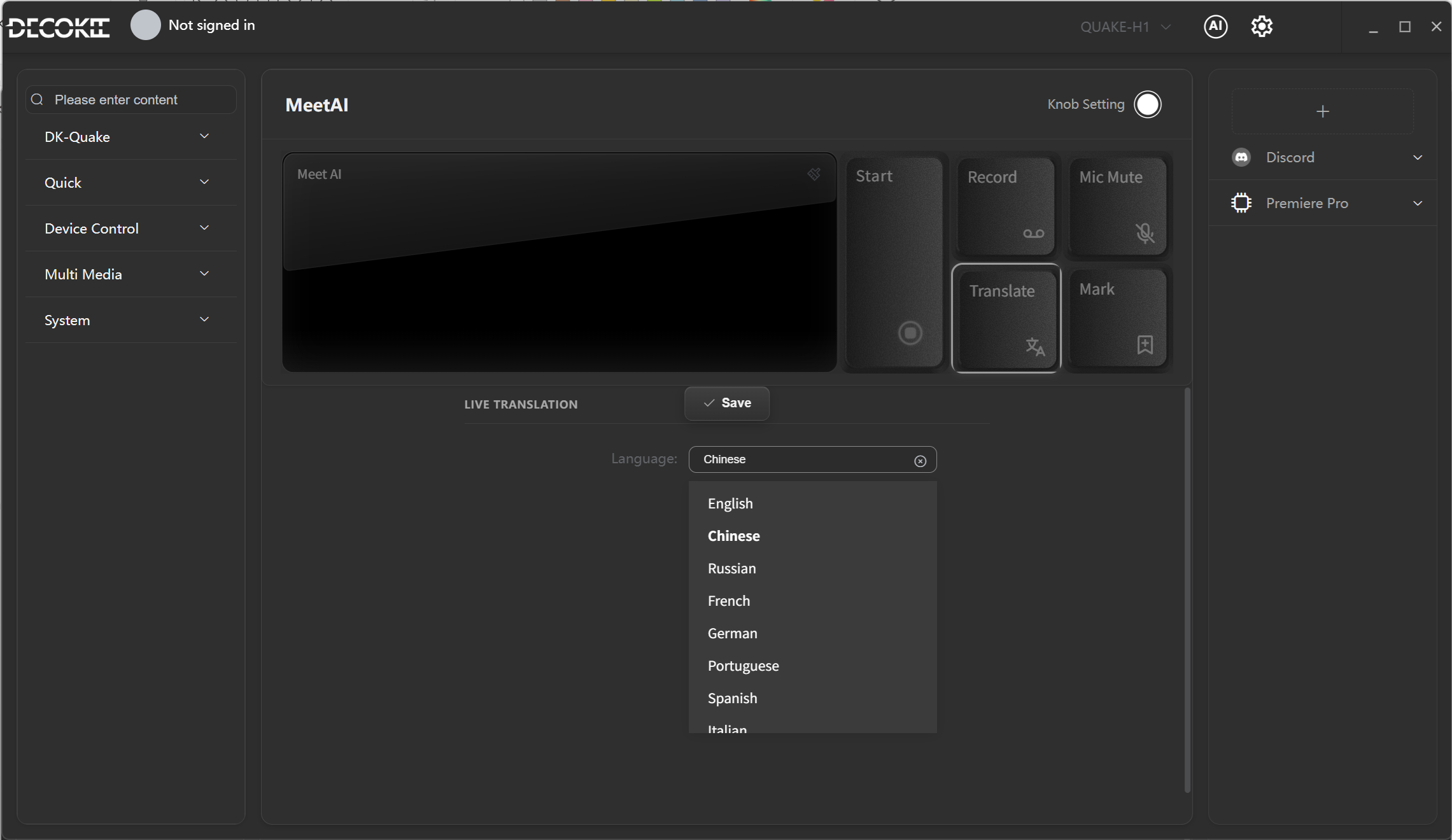
Shortcut List
| Position | Key | Function |
|---|---|---|
| (1,1) | 🌐 Live Translate Display | Show real-time translation subtitle panel |
| (1,6) | ▶ Start | Start meeting recording |
| (1,7) | ⏺ Record | Record content to meeting minutes |
| (1,8) | 🔇 Mic Mute | One-click mute/unmute microphone |
| (2,7) | 🌍 Translate | Toggle real-time translation on/off |
| (2,8) | 📌 Mark | Mark key points on the recording timeline |
Feature Guide
🌐 Real-time Translation
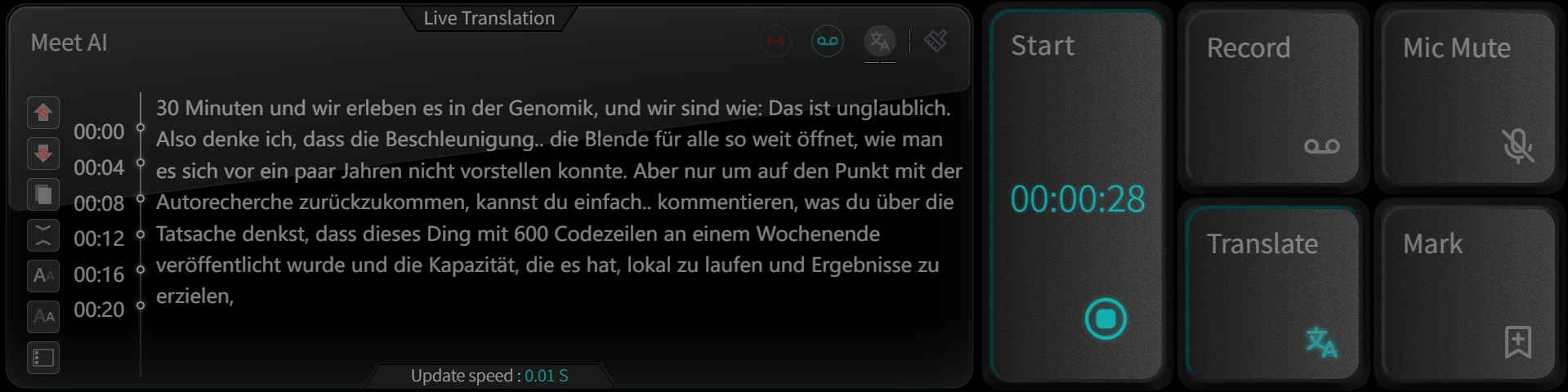
Translate audio from meetings or YouTube videos in different languages and display on the QUAKE meeting screen. Supports 13 languages.
Setup: Click the translation button on the main screen → configure the target language.
▶ Start Meeting
Before starting, check that the MIC LED is lit — this means the microphone is active.
Recording workflow:
- Record audio
- Convert to Transcript
- Generate Summary
Access: Click the AI button in the title bar → view meeting content.
⏺ Temp Record
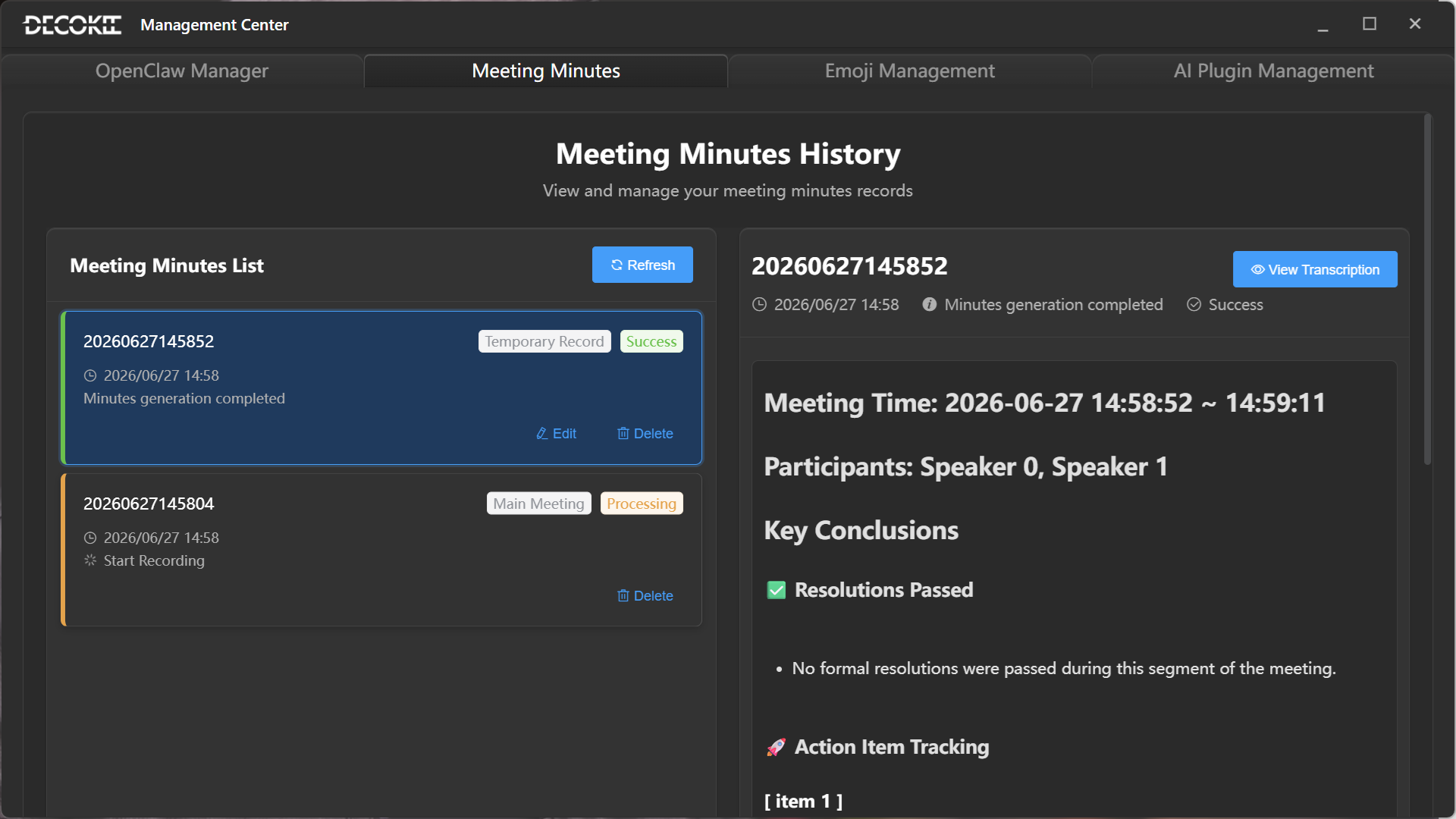
Use this when you need to step away from a meeting but don't want to miss any content. Click Record to start a temporary recording without affecting the main meeting recording. Click again when you return to generate a temp meeting summary.
📌 Mark
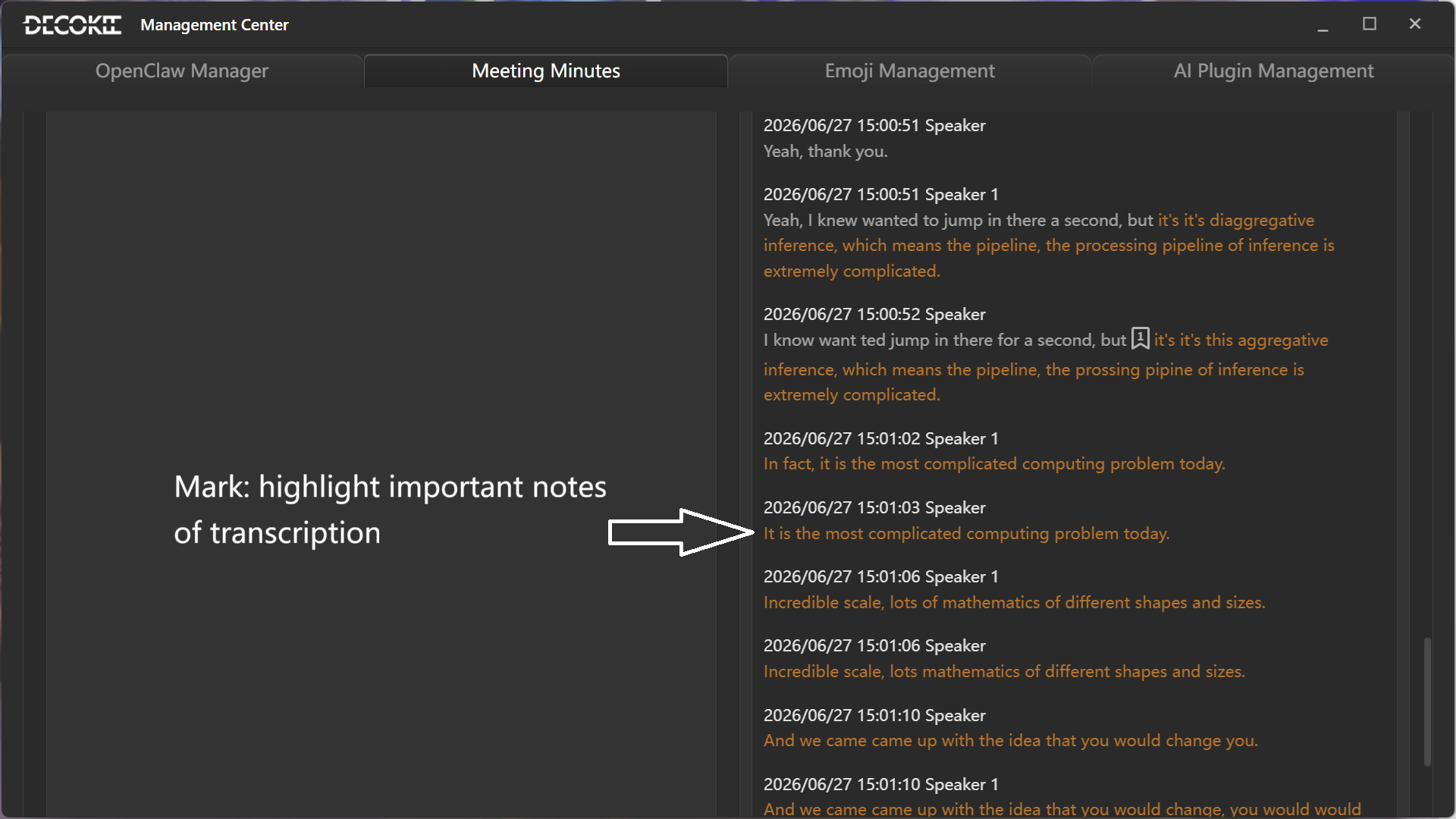
When you hear important content during a meeting, click Mark to tag it in the transcription, helping you track key points.
Status Icons
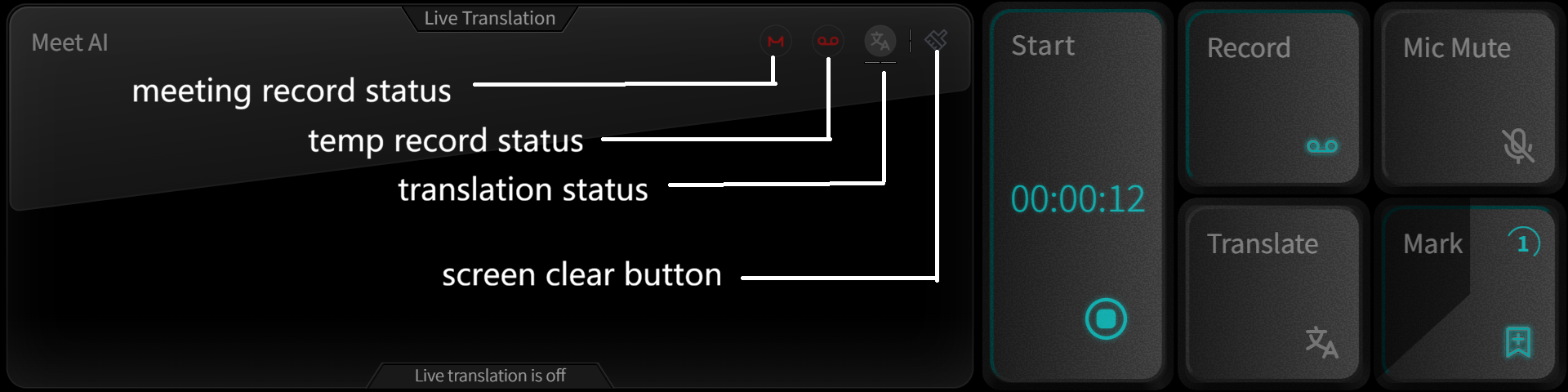
| Icon | Name | Description |
|---|---|---|
| ⏺ | Meeting Record Status | Recording status. An exclamation mark indicates a recording issue, usually network related. |
| 📝 | Temp Record Status | Temp leave recording status. Shows temp meeting summary when complete. |
| ✕ | Screen Clear Button | Tap to clear translation and temp meeting content from the screen. |