🛠 Custom Profile & Shortcuts
In addition to the 9 built-in presets, you can create your own custom profiles by dragging functions from the left component panel into the 8×2 grid.
Creating a Custom Profile
- Click Knob Configuration (which also manages Profiles)
- Create a new Profile, starting from a blank 8×2 grid
- Drag functions from the left component panel into grid slots
- Name and save
Left Component Panel
When editing a Profile, the left panel contains 5 groups. Here is the complete list of draggable components:
① DK-Quake (Smart / AI Functions)
| Component | Description |
|---|---|
| Timer | Sets a countdown timer, triggers an alert when time is up |
| Device Brightness | Adjusts QUAKE-H1 device screen brightness |
| Buzzer | Toggles QUAKE-H1 buzzer |
| Device Mic | Toggles the device microphone |
| Create Folder | Creates a folder on the device |
| Home Assistant | Home Assistant smart home control |
| Lobster Agent | Lobster agent functionality |
| AI Role | Launches a specified AI role conversation |
| AI Chat Display | AI conversation content display panel |
| Lobster Dialogue Display | OpenClaw Agent conversation panel |
| Lobster Input | OpenClaw input box |
| Voice Bot | Voice interaction bot |
| Meeting Minutes | Meeting recording and summarization |
| Real-time Translation | Enable/disable real-time translation |
| Real-time Translation Display | Display real-time translation subtitle panel |
| Temporary Notes | Meeting notes when stepping away |
② Quick Operations
| Component | Description |
|---|---|
| Website | Opens a specified URL |
| Hotkey Profile | Switches hotkey profiles |
| Hotkey | Binds keyboard shortcut combinations |
| Open | Opens an app or file |
| Close | Closes an app or window |
| Text | Inputs text content |
| Player | Local MP3 player |
| Play Audio | Plays a specified audio file |
| Stop Audio | Stops current audio playback |
| Multi Action | Combines multiple actions into a single shortcut |
③ Device Control
| Component | Description |
|---|---|
| Printer Camera | 3D printer camera monitoring |
| Printer Control | 3D printer control panel |
| Printer Status | View printer status information |
| Volume | System volume control |
| Mute | Toggles system mute |
| Brightness | Adjusts system screen brightness |
| Switch Profile | Switches to a specified Profile |
| Previous Page | Navigate to previous page |
| Next Page | Navigate to next page |
| Go to Page | Jump to a specified page |
| Page Indicator | Displays current page number |
④ Media
| Component | Description |
|---|---|
| Play/Pause | Play or pause current media |
| Stop | Stop playback |
| Previous Track | Switch to previous track |
| Next Track | Switch to next track |
| Rewind | Skip backward |
| Fast Forward | Skip forward |
| Replay | Replay the current track |
| Shuffle | Toggle shuffle playback mode |
⑤ System
| Component | Description |
|---|---|
| Command Line | Execute command line instructions |
| CPU Info | Display CPU usage and temperature |
| GPU Info | Display GPU usage, VRAM, and temperature |
| Memory Info | Display memory usage and utilization |
| Disk Info | Display disk read/write speed and available space |
| Process Info | Display processes with highest CPU/memory usage |
| Network Info | Display network upload/download speed and connection count |
| Bluetooth Info | Display Bluetooth connection status and devices |
| Power Info | Display battery level and power consumption |
Smart Home
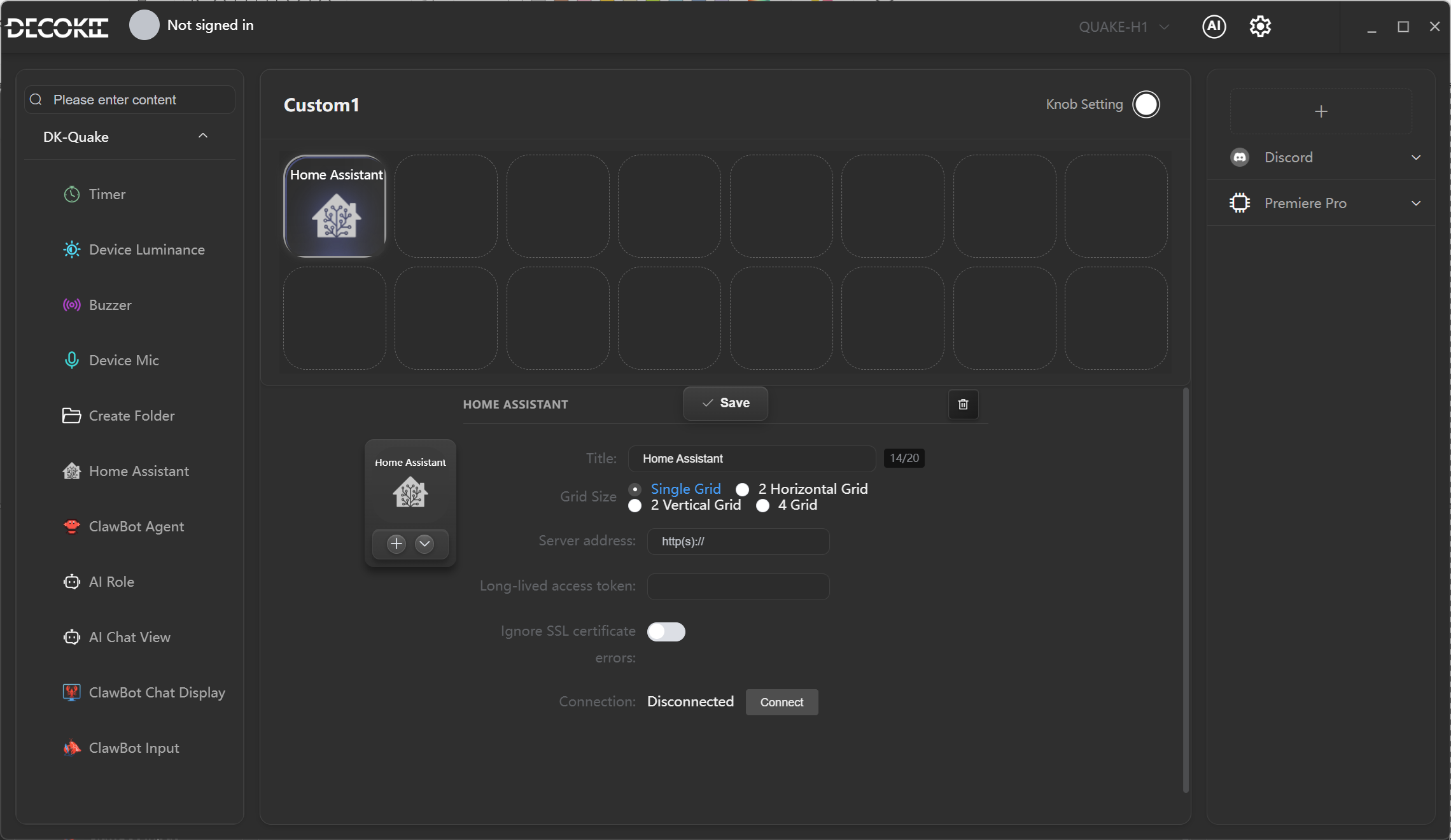
Integrate with Home Assistant to control smart devices at home via voice or shortcuts.
Configuration Steps
| Field | Description |
|---|---|
| Server Address | Home Assistant instance address (e.g., http://192.168.1.100:8123) |
| Token | Long-Lived Access Token |
| Test Connection | Verify that the address and Token are valid |
Voice Control Examples
- "Turn on the living room light"
- "Set the bedroom temperature to 26 degrees"
- "Draw the curtains halfway"