🎮 Discord
Shortcut collection designed for Discord voice chat.
Grid Layout
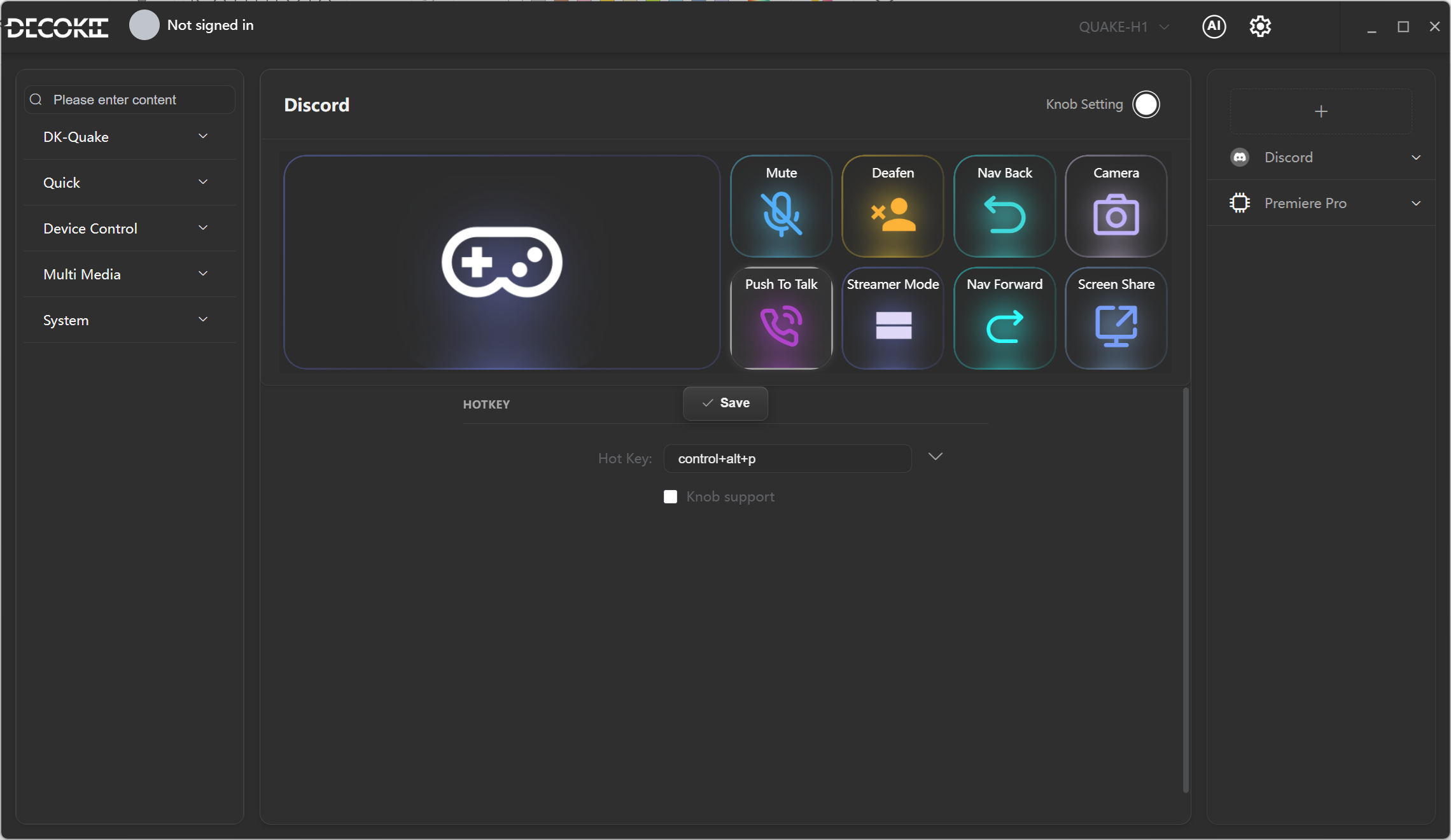
Shortcut List
| Position | Key | Function | Shortcut |
|---|---|---|---|
| (1,1) | 🎮 Discord Monitor | Monitor Discord window | — |
| (1,5) | 🔇 Mute | Toggle mic mute/unmute | Ctrl+Alt+M |
| (1,6) | 🎧 Deafen | Toggle speaker deafen | Ctrl+Alt+D |
| (1,7) | ◀ Back | Navigate to previous channel/page | Ctrl+Alt+[ |
| (1,8) | 📷 Camera | Toggle camera on/off | Ctrl+Alt+E |
| (2,5) | 🎤 Push to Talk | Hold to talk | Ctrl+Alt+Shift+Esc |
| (2,6) | 📡 Streamer Mode | Toggle streamer mode | Ctrl+Shift+Z |
| (2,7) | ▶ Forward | Navigate to next channel/page | Ctrl+Alt+] |
| (2,8) | 🖥 Screen Share | Start/stop screen sharing | Ctrl+Alt+S |
Discord Monitor
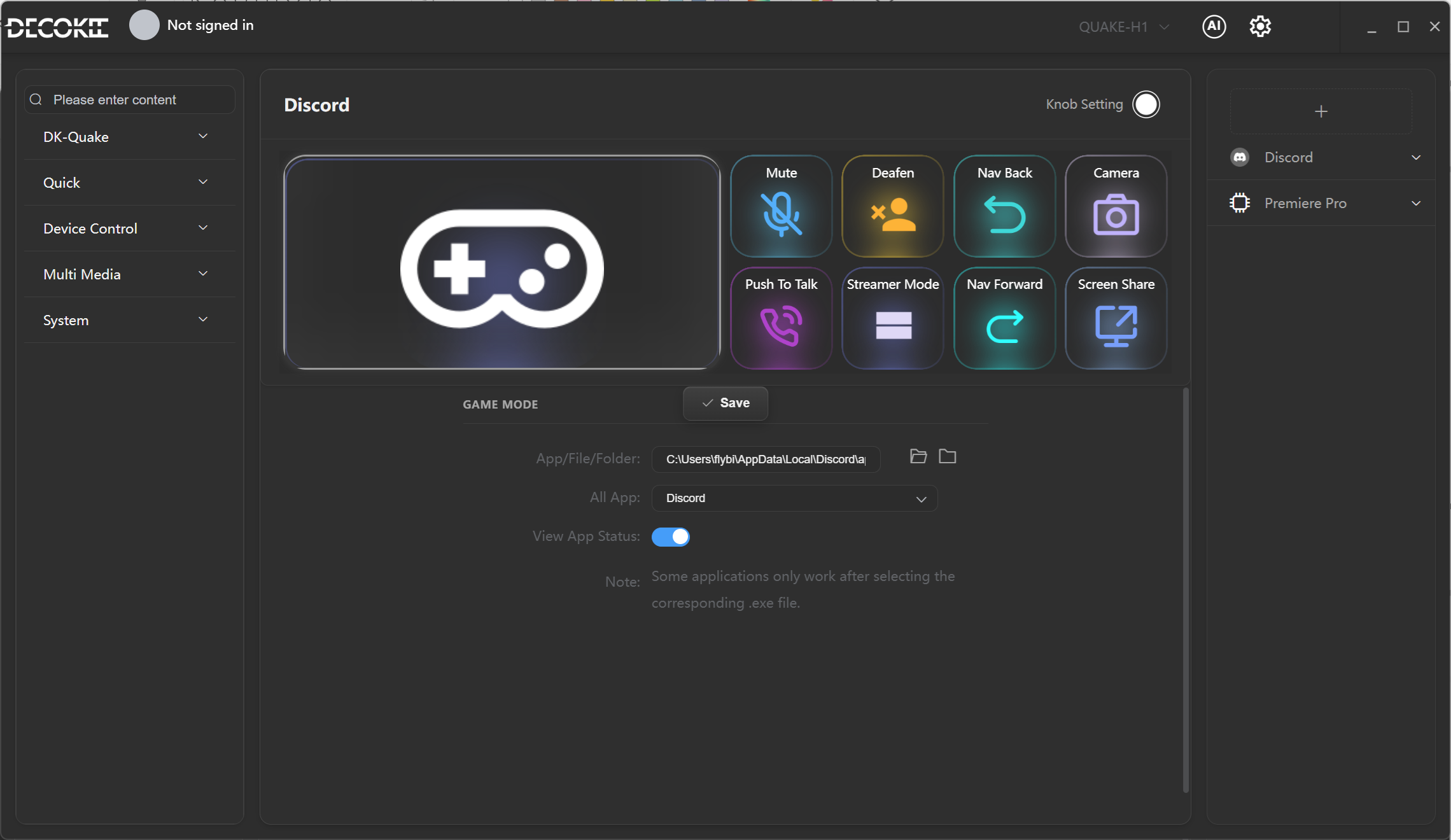
In Settings, select Discord as the target app and enable View App Status. QUAKE-H1 will display the Discord interface in real time — no need to switch windows.
Keybinding Setup
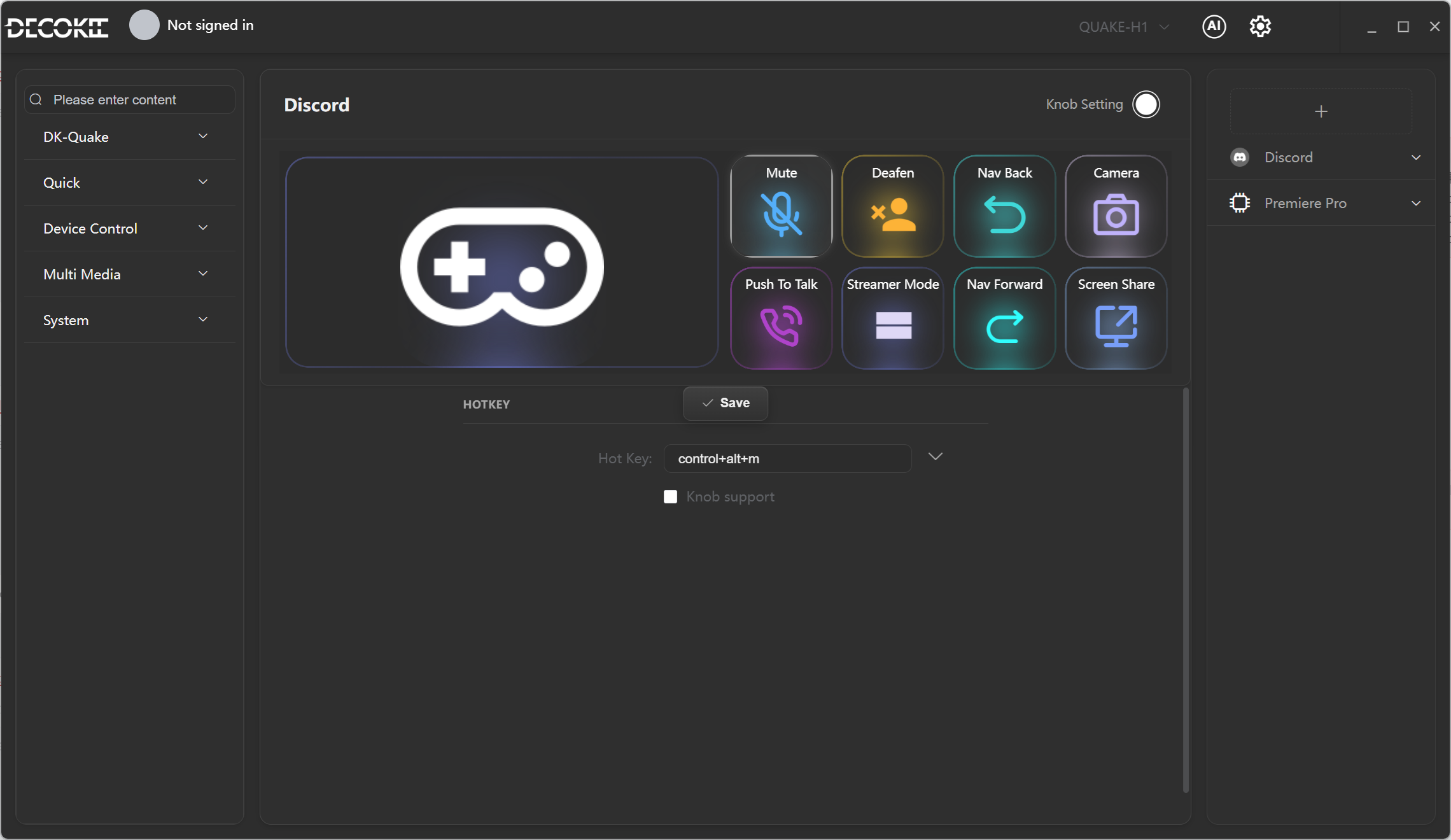
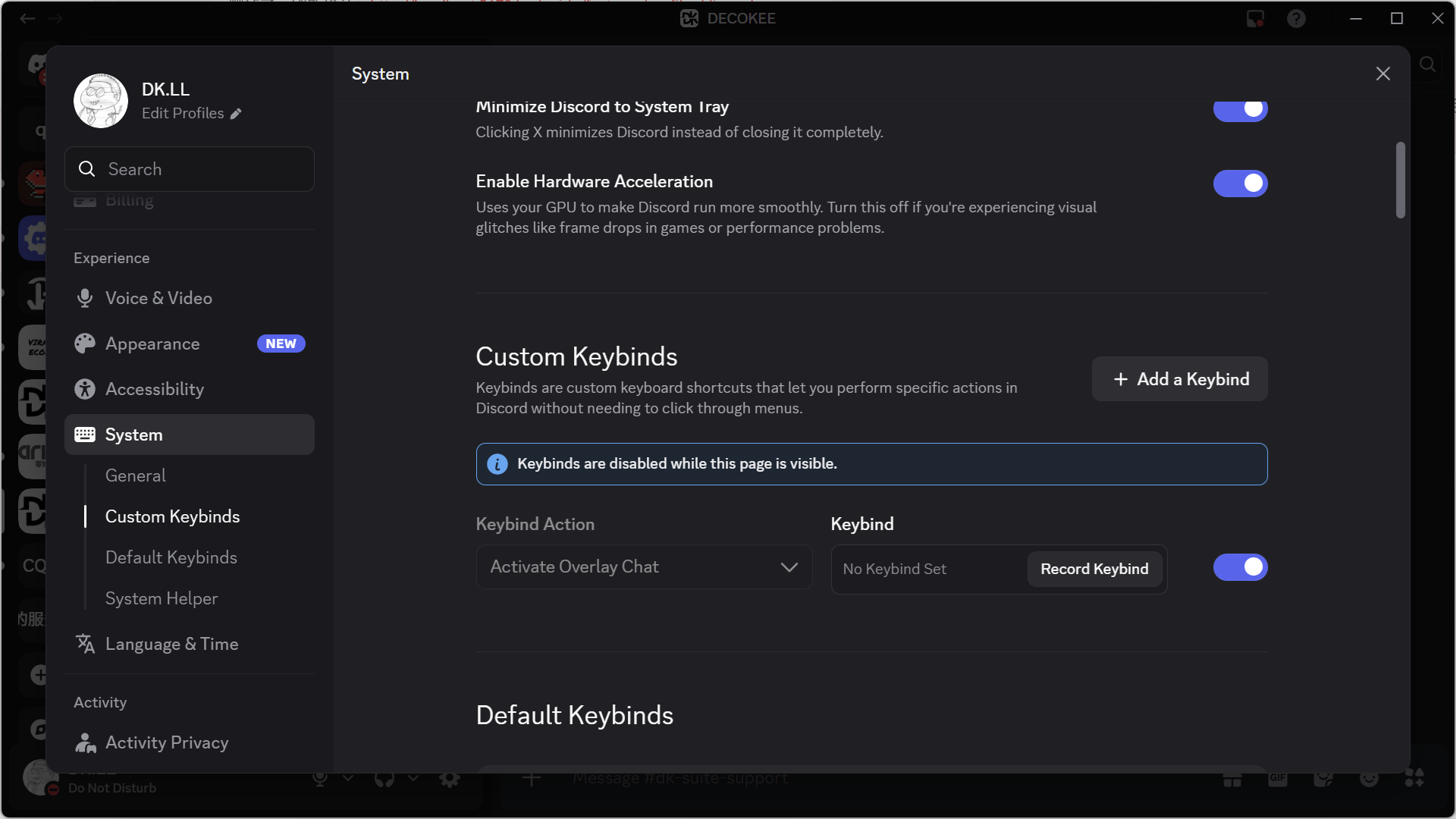
Pairing
Each shortcut's default key combination must be paired in Discord's Keybind Settings for the corresponding function before use.
Conflict Resolution
Default shortcuts may conflict with system or in-game shortcuts. We recommend using more complex combinations (e.g., Ctrl+Alt+Shift+Key) to reduce conflicts.
Requirements
These shortcuts only work after binding in Discord's Keybind Settings. Go to Discord → User Settings → Keybinds to set them up.