🔌 Connect Device to Computer
1. Connect to Your Computer
Take the cables from the box and connect them to your QUAKE-H1 first, as shown below:
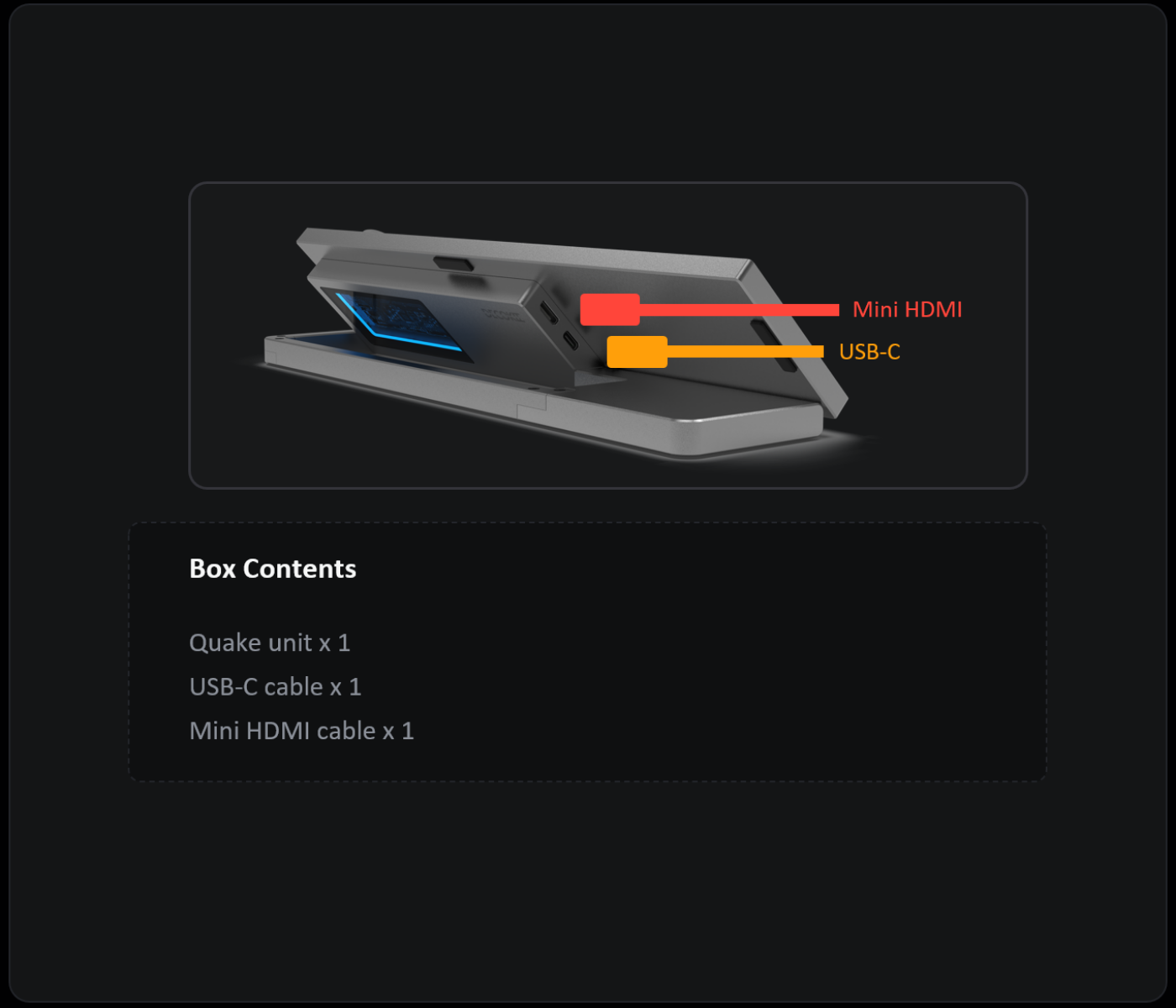
Standard Connection
If your computer has an HDMI port and a USB-A port, as shown below:
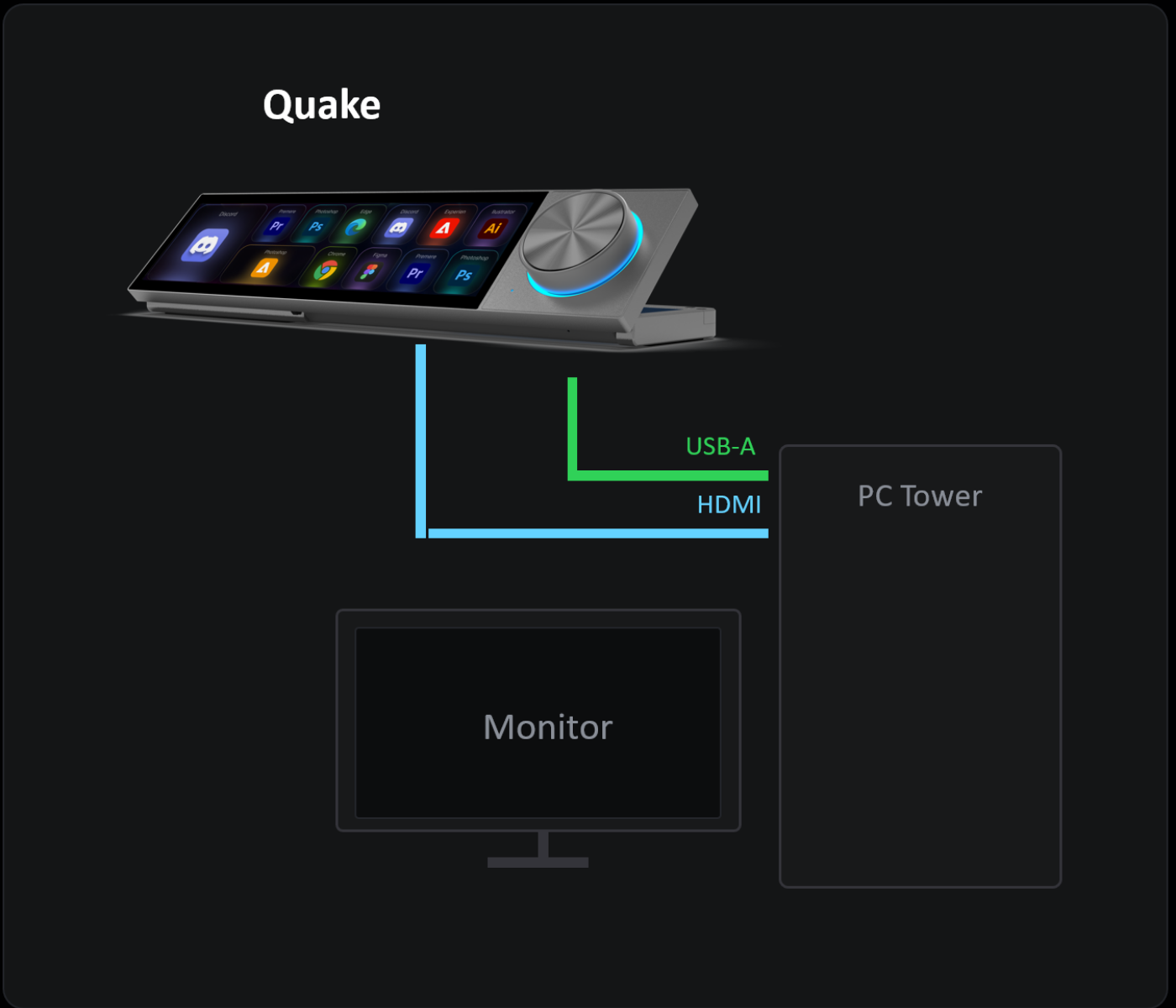
- Connect the TYPE-A to TYPE-C cable: USB-A end to your computer, TYPE-C end to QUAKE-H1's USB-C port
- Connect the HDMI to Mini HDMI cable: HDMI end to your computer, Mini HDMI end to QUAKE-H1's Mini HDMI port
Dock Connection
If your computer/laptop/Mac has a Type-C port with DP support, as shown below:
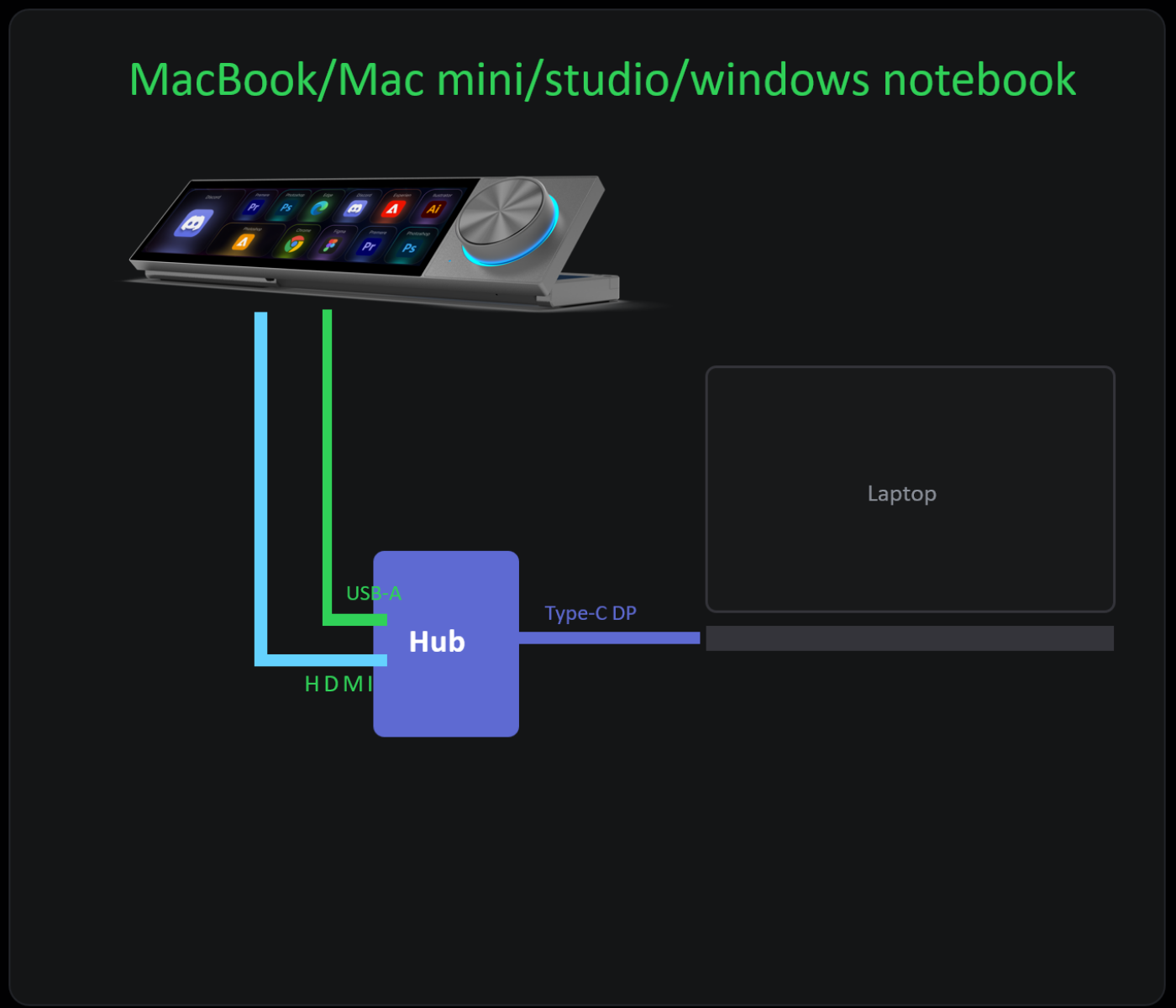
- Connect QUAKE-H1 to a DP-capable docking station using the included cables
- Connect the docking station to your computer's Type-C port
ℹ️ Note
- The device is powered via the USB cable from your computer (5V/2A) — no separate power adapter needed
- When connecting for the first time (before installing the software), the device screen will briefly mirror your desktop, then turn off automatically after about 10 seconds. This is normal.
- Make sure both USB and HDMI cables are securely connected
2. Power On
Once the USB cable is connected, the device powers on automatically. The LED indicator lights up to confirm power.
3. Check Device Status
- The computer should detect the QUAKE-H1 device after the USB cable is connected
- After connecting both USB and HDMI cables, the LED will light up, the screen will turn on, and it will display your desktop background for about 10 seconds
- If the device isn't detected, try reconnecting both the USB and HDMI cables
⚠️ Important Notes
- USB cable is for data only — do not connect it to a power adapter. Many users mistakenly think this USB cable is for power. It is a data cable only.
- Desktop PC with dedicated GPU: If your PC has a dedicated graphics card, connect QUAKE-H1's HDMI cable to the graphics card, not the motherboard. If the GPU's HDMI port is already used by your main monitor, you'll need a DP to HDMI adapter to free up an HDMI port for QUAKE-H1 (most GPUs only have one HDMI port).
Next Step
Ready? Proceed to Install DK-Suite →