🧠 AI Workbench
Entry: the AI Workbench button at the top-right of the title bar (older docs called this the “Management Center”; in v0.4.95 it is the Quake AI Workbench).
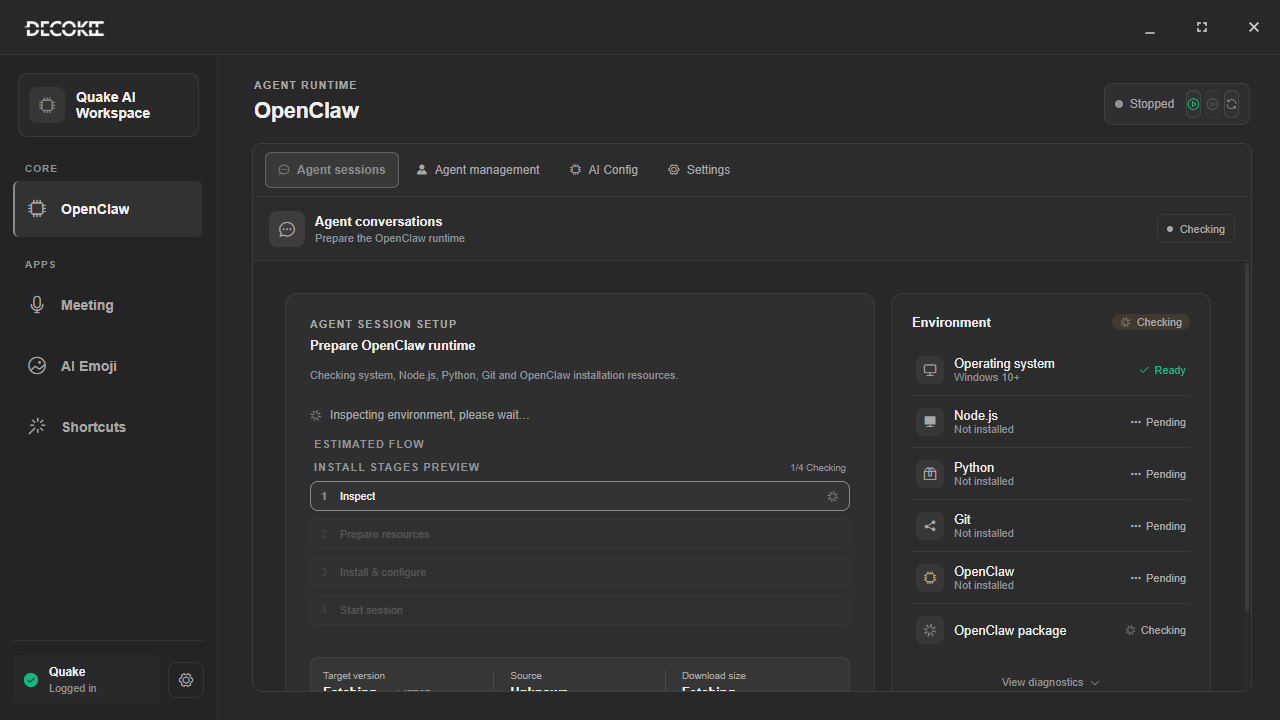
Left-hand navigation groups:
| Group | Item | Purpose |
|---|---|---|
| Core | OpenClaw | AGENT runtime: start/stop/restart OpenClaw, manage agent sessions |
| Apps | Meeting | Meeting records, live transcription, minutes |
| Apps | AI Emoji | Generate and manage emoji packs from text or an image |
| Apps | Shortcuts | AI generates shortcuts from a description |
| Quake | Quake | AI settings related to the device screen |
① OpenClaw (AGENT runtime)
The header shows the current state (not running / running) and two quick icons; the main area has 4 sub-pages:
| Sub-page | Content |
|---|---|
| Agent session | Agent chat; when the service is stopped it says “start OpenClaw to manage sessions” |
| Agent management | Installed agents and their management |
| AI config | Model and provider settings |
| Settings | OpenClaw-related settings |
When stopped, the centre offers Start OpenClaw / Stop / Restart. Once the environment check passes, click Start OpenClaw to enter agent sessions.
② Meeting
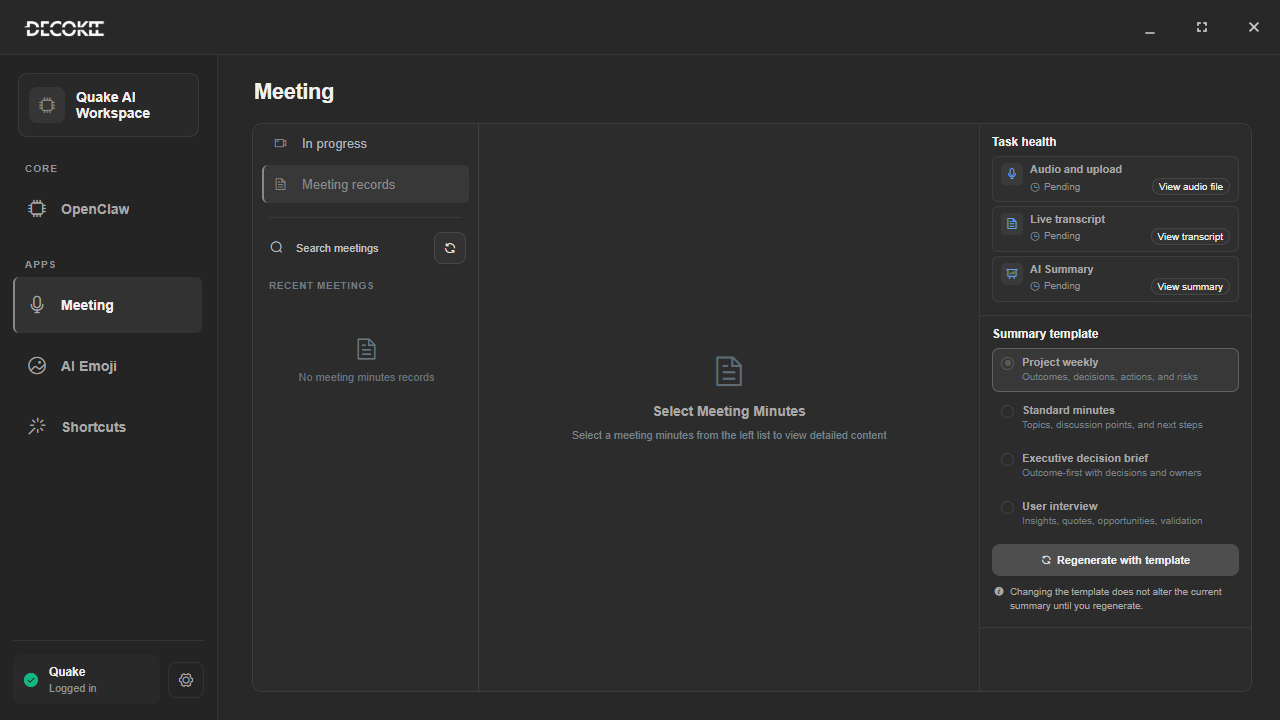
| Area | Content |
|---|---|
| In progress / Meeting records | Two entries |
| Recent meetings | Minutes list; shows “No meeting minutes yet” when empty |
| Task status | Status of audio upload and live transcription |
| Detail pane | Select a record on the left to read it here |
③ AI Emoji
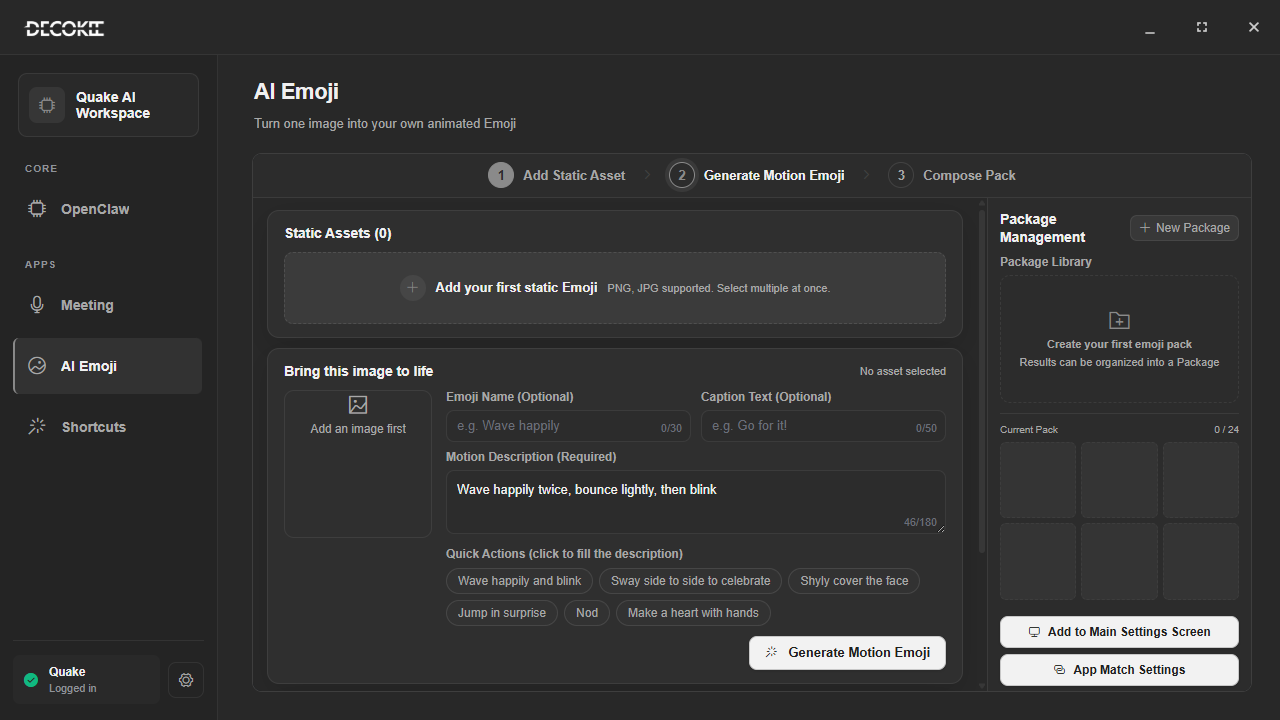
Generate emoji packs from a description or an image; results land in the emoji library and can be dragged onto the grid from the right-hand library panel.
④ Shortcuts (AI-generated shortcuts)
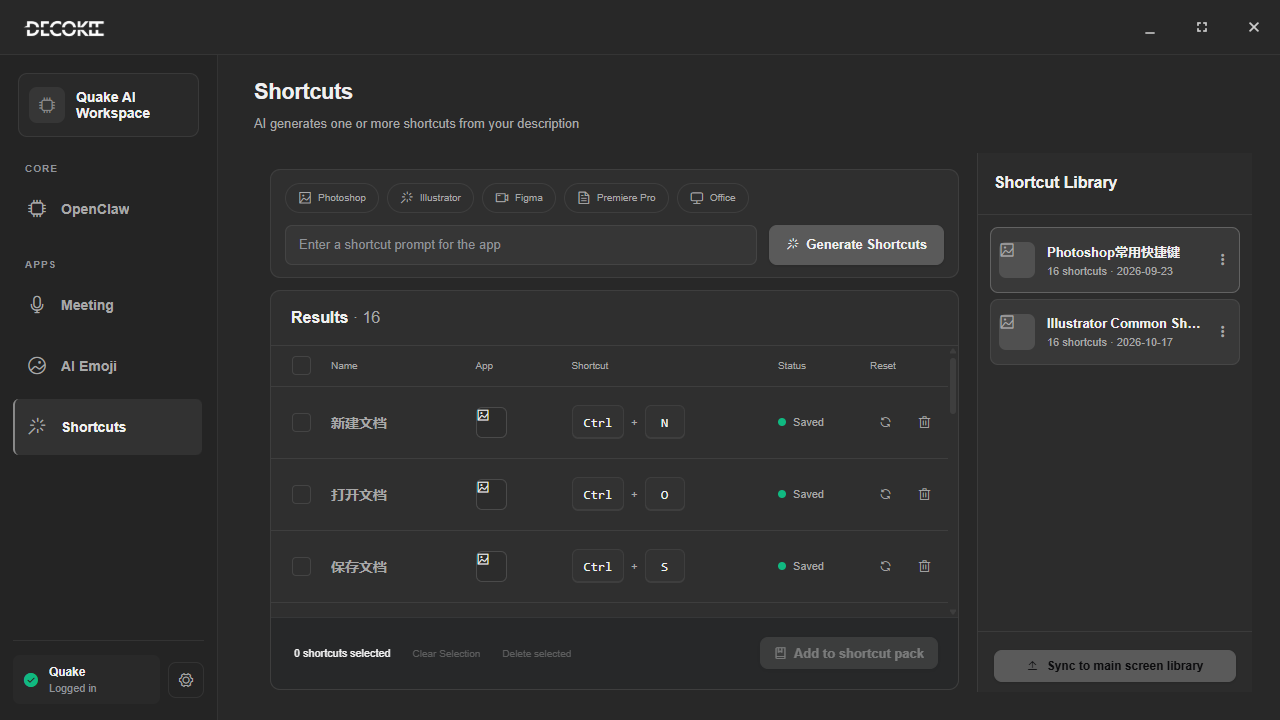
- Pick the target app (Photoshop / Illustrator / Figma / Premiere Pro / Office…)
- Describe what you want in one sentence
- Click Generate — AI produces one or more shortcuts
- They appear under results and can be dragged onto the grid