Windows Installation
1. Download the Installer
- Visit the download page (choose based on your region):
- Select Windows version
- Download
DK-Suite_Setup_x.x.x_x64.exe
2. Installation Steps
- Double-click the downloaded installer
- If Windows Defender prompts, click More info → Run anyway
- Choose an installation directory (recommend non-C drive, e.g.,
D:\Program Files\DK-Suite) - Check "Create desktop shortcut"
- Click Install and wait for completion
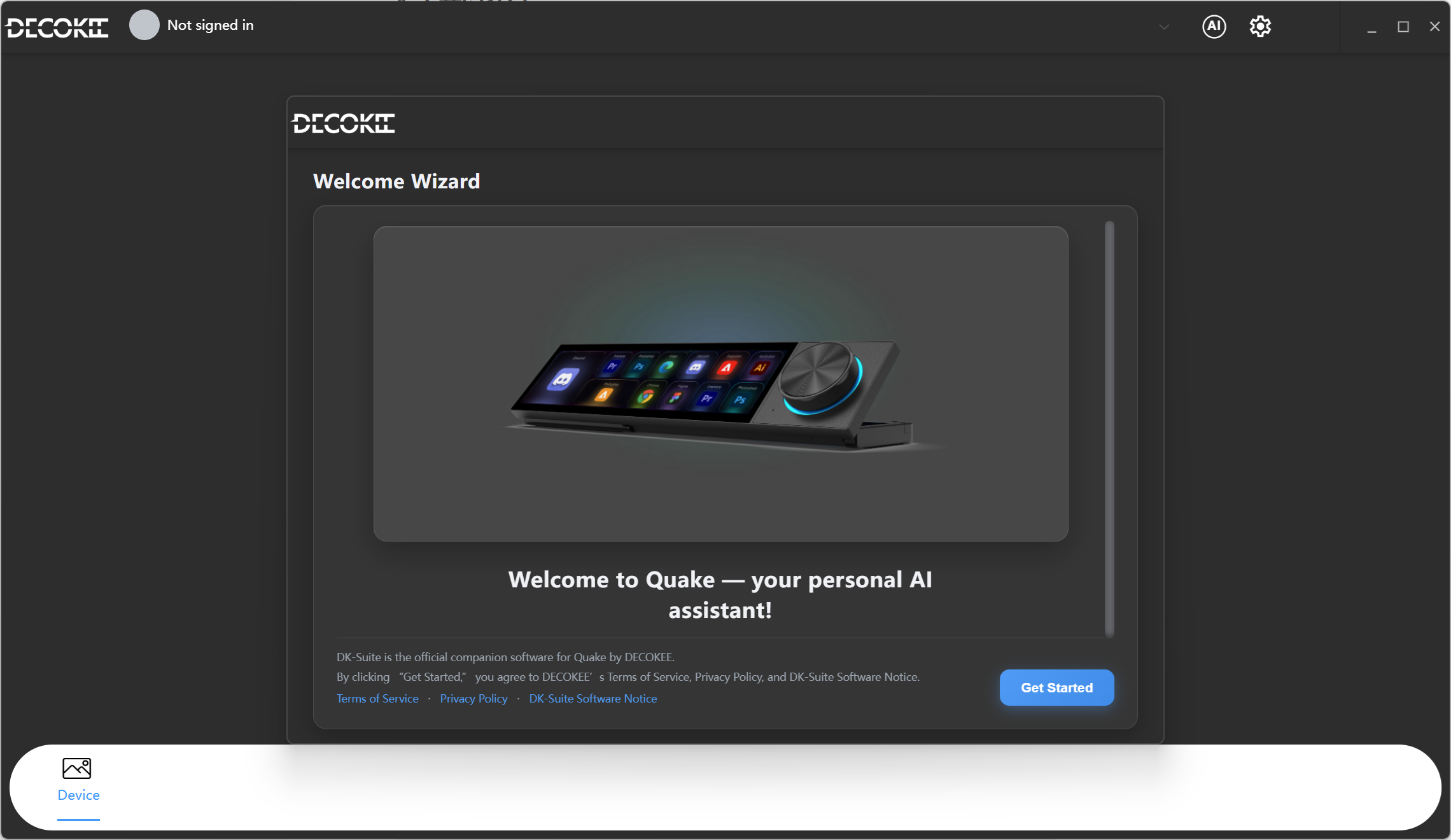
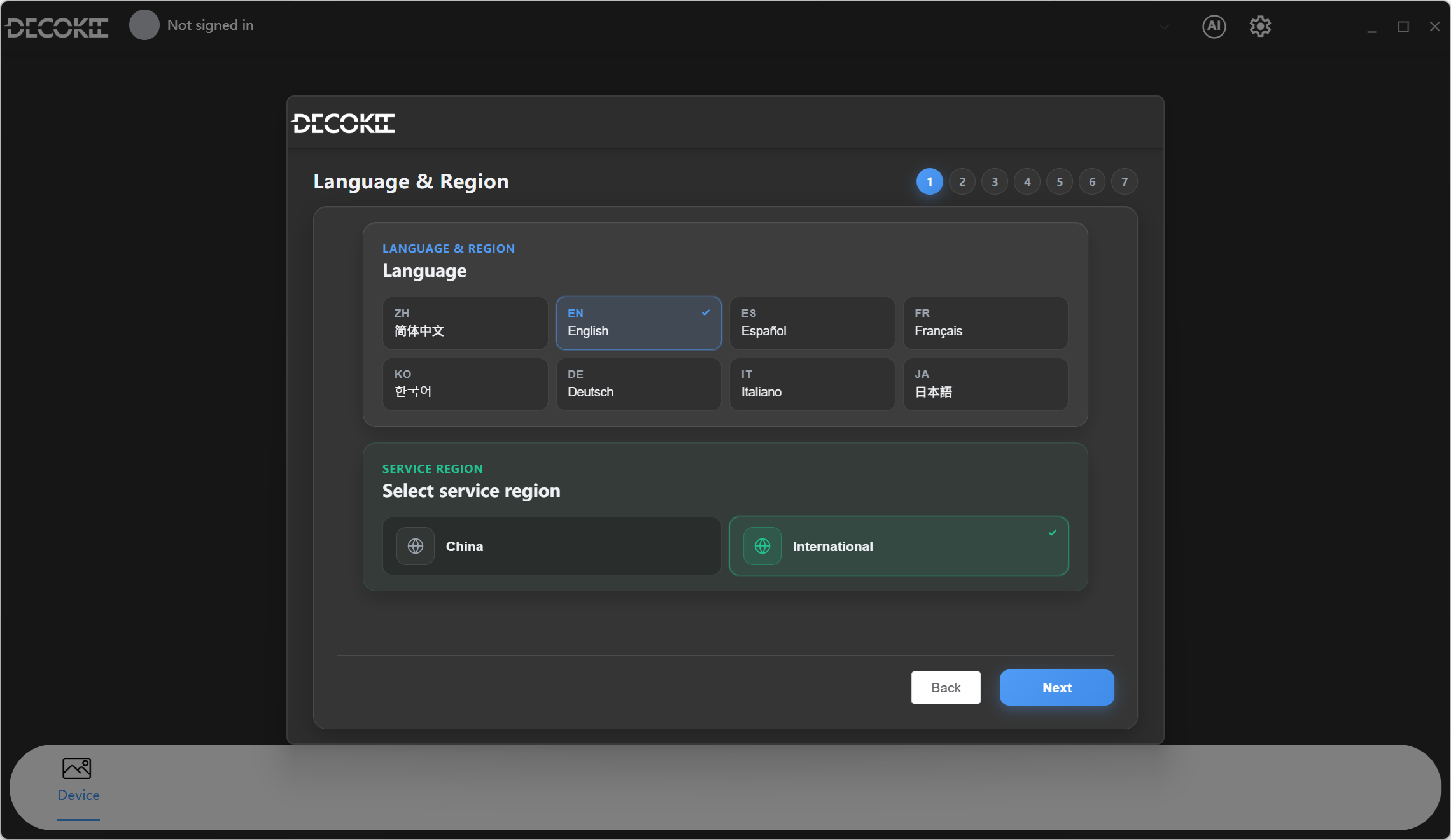
3. First Launch Wizard
After installation, the application launches automatically. Follow the setup wizard to complete these steps:
| Step | Description | Notes |
|---|---|---|
| 1️⃣ Choose Language / Region | Select your preferred interface language. Region is auto-detected by IP — you can manually override it if incorrect | Can be changed later in Settings |
| 2️⃣ Register / Login | Create a DECOKEE account or sign in | Can skip — redo from app top-left later |
| 3️⃣ Adjust Screen Orientation | Set display orientation to match your setup | — |
| 4️⃣ Install OpenClaw | Install the OpenClaw Gateway service | Recommended |
| 5️⃣ Initialize OpenClaw | Configure gateway and workspace | Recommended |
| 6️⃣ Choose Feature Template | Select shortcut templates that fit your needs | Can customize later |
⚠️
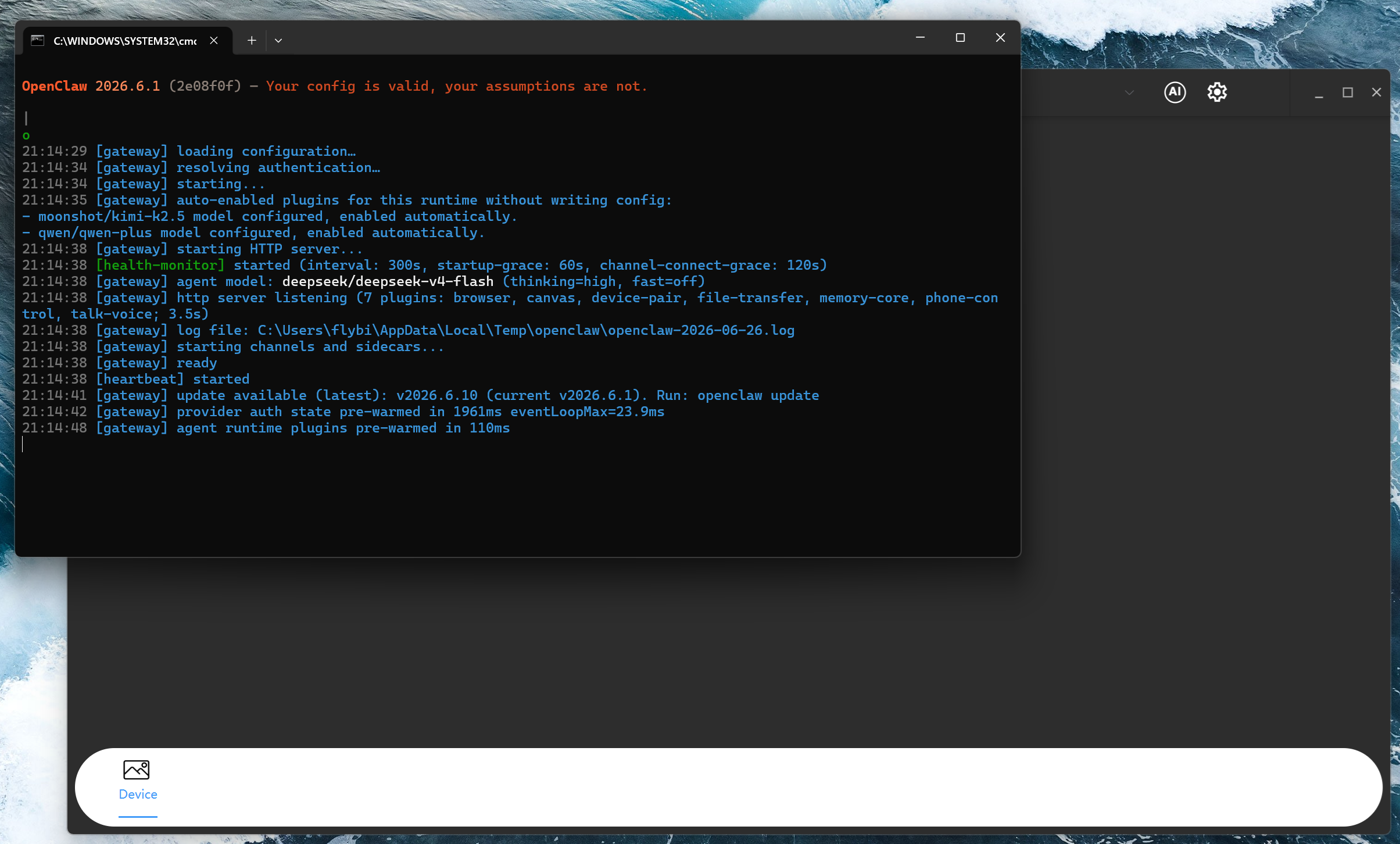
Only the Register/Login step can be skipped. It's recommended to complete all other steps in the wizard. After the wizard completes, you'll need to register and sign in to use AI features. On the first login, the OpenClaw Gateway window will pop up — do not close it, see below:
💡 OpenClaw Installation Notes
Prerequisites: Don't worry if Node.js, Python, or Git aren't installed — the setup wizard will detect and install them automatically. If you already have them installed, the wizard will detect your existing installations.
Node.js version: If you already have Node.js installed, the version must be > 22.19+ or OpenClaw installation will fail.
If installation fails or hangs: You can skip the OpenClaw step and install it later from Claw Console → Install, where you can install it step by step.
Once configured, click Enter QUAKE to start using the software.
4. Subsequent Launches
- Double-click the desktop shortcut
- Or find DK-Suite in the Start Menu
5. Verify Installation
- [x] Main interface displays correctly
- [x] Status bar shows "Connected"
- [x] Feature menu is accessible